Welcome back! This is the seventh and last lesson where you will finish up the remaining details of your task manager.
In this lesson you will learn how to create a handy reusable logic component, work with the States node, and format date strings.
Formatting dates
Formatting dates
In the last lesson you built a flow where users could create new task cards. But something that immediately got clear is how the selected date is showing way too much information in our cards.
This is because our Date Picker outputs a full JavaScript date with all the related date information. We only want to show day, month and year.
An easy fix is to the use Date To String node.
Date To String node
Date To String node
This node takes in a Date value and outputs a formatted string with your specified format. The default format is {year}-{month}-{date}.
You can change this in any way you want, but for now let's just use the default formatting.
Let's use this node in all the places where dates are displayed!
Lesson tasks
Time to get your hands dirty!
During this lesson, you will be given multiple tasks. Spot them in the lesson timeline by the Task label.
If you get stuck you can get a hint by clicking the card in the timeline.
Some of the nodes graphs will already be set up for you beforehand. This is to keep the lessons short so that you can focus on learning one concept at a time. If it feels like magic at times, don't worry. It's just a concept you will learn in a later lesson.
Task
Select the /task-page path in the Path Dropdown
Task
Select the Card Item component in the Component Panel
Select the Create Card Page component in the Component Panel to show its node graph
Task
In the Card Item component, open the Node Picker and create a Date To String node
Task
Connect the Object node to the Date To String node and send the date output to the date input
Task
Connect the Date To String node to the Date Text node and send the date string output to the text input
Create a Logic Component called "Card Category Styler"
Image and background color
Image and background color
The date is fixed. Now you need to match the cards image and background color to the selected category.
To make it more user friendly (and prevent any user errors) we don't want the user to set the image and color manually. It's better if there is some logic that can pick the correct ones automatically depending on the selected category.
There are several places in your app where such logic would be good to have. This makes it a perfect case to use a logic component.
Logic components
Logic components
Just like you can create visual components and place instances of them in multiple places in your UI, you can create logic components and reuse that logic across your project.
You create a new logic component by clicking the plus button in the Components section in the Component Panel and select Logic Component.
Every logic component comes with Component Inputs and Component Outputs nodes by default. This is handy as most cases for a logic component involves data going in to it, and a result going out.
Let's try to create a logic component that controls the image and background color styles of the Card Items.
Task
Create a logic component called Card Category Styler
Remember that component names are case sensitive
Task
On the Component Inputs node, create a port called Category
Remember that port names are case sensitive
Task
On the Component Outputs node, create a port called Background Color, and a port called Image
Remember that port names are case sensitive
The States node
The States node
One of the most powerful nodes when it comes to interactivity is the States node.
It allows you to define your own custom states (both logical and visual), and easily switch between them. Every state can hold a unique set of values. This makes it ideal for controlling UI states with animations, making items hide or show, or return specific values based on the current active state.
This is once again a node that is easier to explain in practice, so let's try it out.
Task
In the Card Category Styler component, create a States node
Task
Add the following states on the States node: work, study, shopping, appointment
Creating State Values
Creating State Values
All the states in the node share the same output ports (called values). Every value port can output a different value depending on the current active state. You can change the current active state with a signal.
The States node in this component will contain two value ports: Image and Background Color. These value ports will output different values depending on which one the four states (work, study, shopping, appointment) is active.
Task
Create the following value ports on the States node: Background Color, Image
Task
Set the value type of Background Color to Color
Task
Set the value type of Image to String
Adding color and images to States node values
Adding color and images to States node values
The value ports are now created and and listed under every state in the Property Panel.
It's now time to assign the color and image source for each state.
Task
Under the work state, set the background color to the Work color style and the image to work.png
Task
Under the study state, set the background color to the Study color style and the image to study.png
Task
Under the shopping state, set the background color to the Shopping color style and the image to shopping.png
Task
Under the appointment state, set the background color to the Appointment color style and the image to appointment.png
States node and transitions
States node and transitions
By default the States node is set to smoothly animate the transitions between the values on a state change. This is a very useful behavior for things like interactivity in a UI, but in the case of the Card Items it will be unnecessary. The state will only be set once to style the card correctly, and never change after that. You can uncheck the transition checkbox in the State nodes Property Panel to remove the transition.
Task
On the States node, uncheck the use transitions checkbox
Connecting the States node
Connecting the States node
The next step is to connect the Component Inputs and Component Outputs with the States node.
For now, this logic component will be used in the Card Item component, which gets generated each time a new task is created. The selected category should be read by the States node, which in turn should return the correct image and color.
Let's connect it all up!
Task
Connect the Component Inputs node to the States node and send the category output to the state input
Task
Connect the States node to the Component Outputs node and send the background color output to the background color input
Task
Connect the States node to the Component Outputs node and send the image output to the image input
Task
Select the Card Item in the Component Panel to open its node graph
Task
Create a new instance of the Card Category Styler component by dragging it in from the Component List, or by finding it in the Node Picker
Task
Connect the Object node to the Card Category Styler and send the category output to the category input
Task
Connect the Card Category Styler to the Image node and send the image output to the source input
Task
Connect the Card Category Styler to the Card group node and send the background color output to the background color input
Updating the Details Page
Updating the Details Page
Great work! If you create a new card now, you can see it render with the correctly formatted date, color and image in the Task Page.
However, if you click on a card to navigate to its Details Page, you can see that the styles are nowhere to be found.
This can quickly be fixed by using the new Card Category Styler component, and the Date To String node.
Let's connect it up, and celebrate!
Task
Open the node graph for the Details Page, and create an instance of the Card Category Styler component
Task
Connect the Object node to the Card Category Styler and send the category output to the category input
Task
Connect the Card Category Styler to the Image node and send the image output to the source input
Task
Connect the Card Category Styler to the Hero Group node and send the background color output to the background color input
Task
Open the Node Picker and create a Date To String node
Task
Connect the Object node to the Date To String node and send the date output to the date input
Task
Connect the Date To String node to the Date Text node and send the date string output to the text input
Outro
Congratulations!
Congratulations!
You've built a task app! Hope you had fun. As you may have noticed, the app we just built is only working locally, and will reset on every refresh.
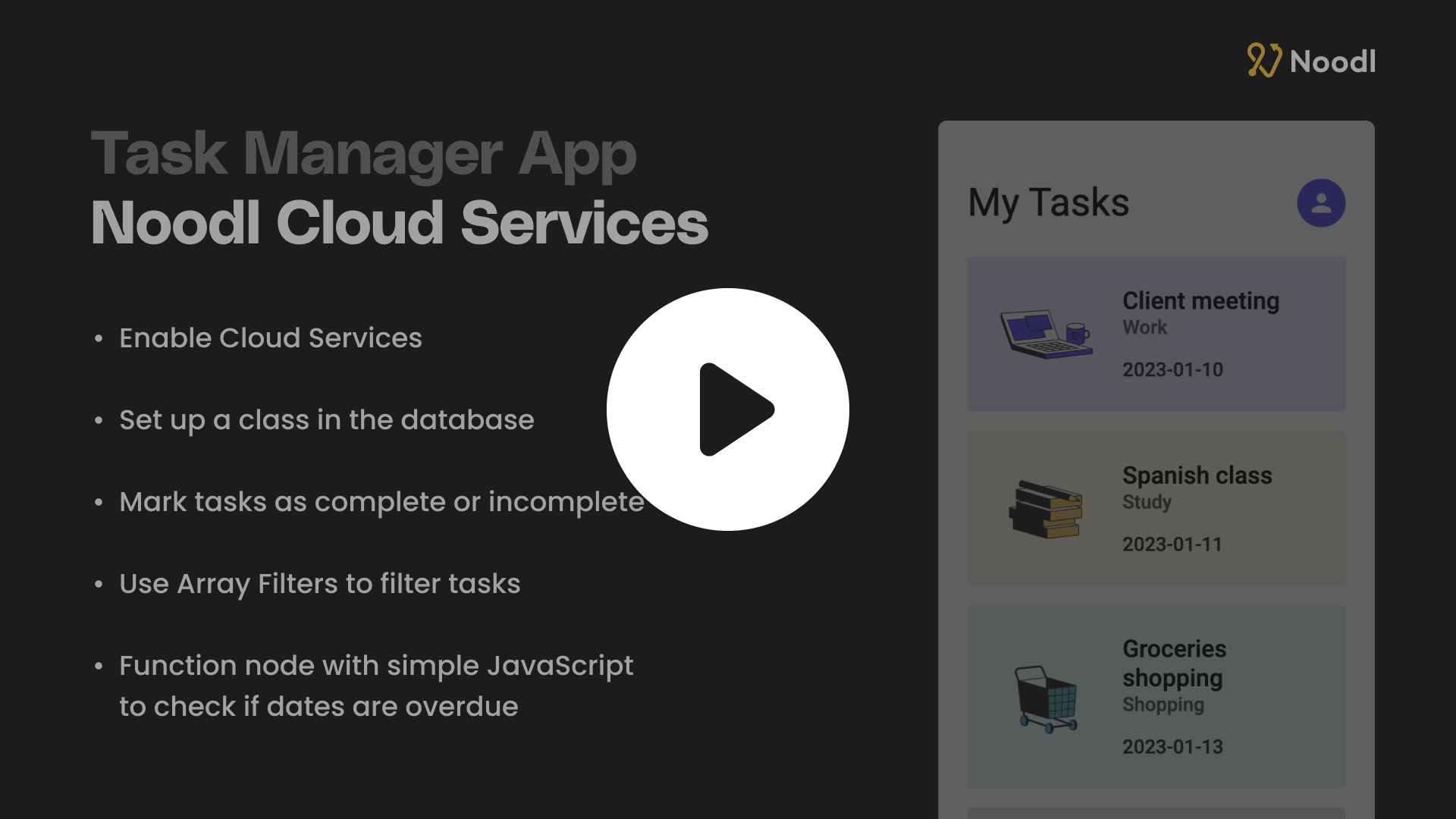
If you want to turn the task manager app into a real working app that saves tasks to a backend, click the image above to watch our video tutorial on how to turn the task manager app into a cloud based app using Noodl Cloud Services. After watching that, you will be truly ready to start building your own apps.
Feel free to reach out to us in our Discord server. You can find links to them in the bottom right corner of the Node Canvas.