In this lesson, we will explore some practical examples of Noodl AI's capabilities.
Noodl incorporates modern AI technologies like large language models to offer a range of different features. Although currently in "early beta" stage, Noodl AI is highly functional and will continue to see improvements in future iterations.
Noodl AI is available in two versions: "Limited Beta" and "Full Beta". The default is the "Limited Beta", which utilizes AI technology from OpenAI, specifically the "GPT3.5" model.
If you have your own OpenAI API key with access to the GPT4 model, you can integrate it with Noodl to unlock the "Full Beta" version. This offers enhanced performance for the Function command and additional features.
Let's get started!
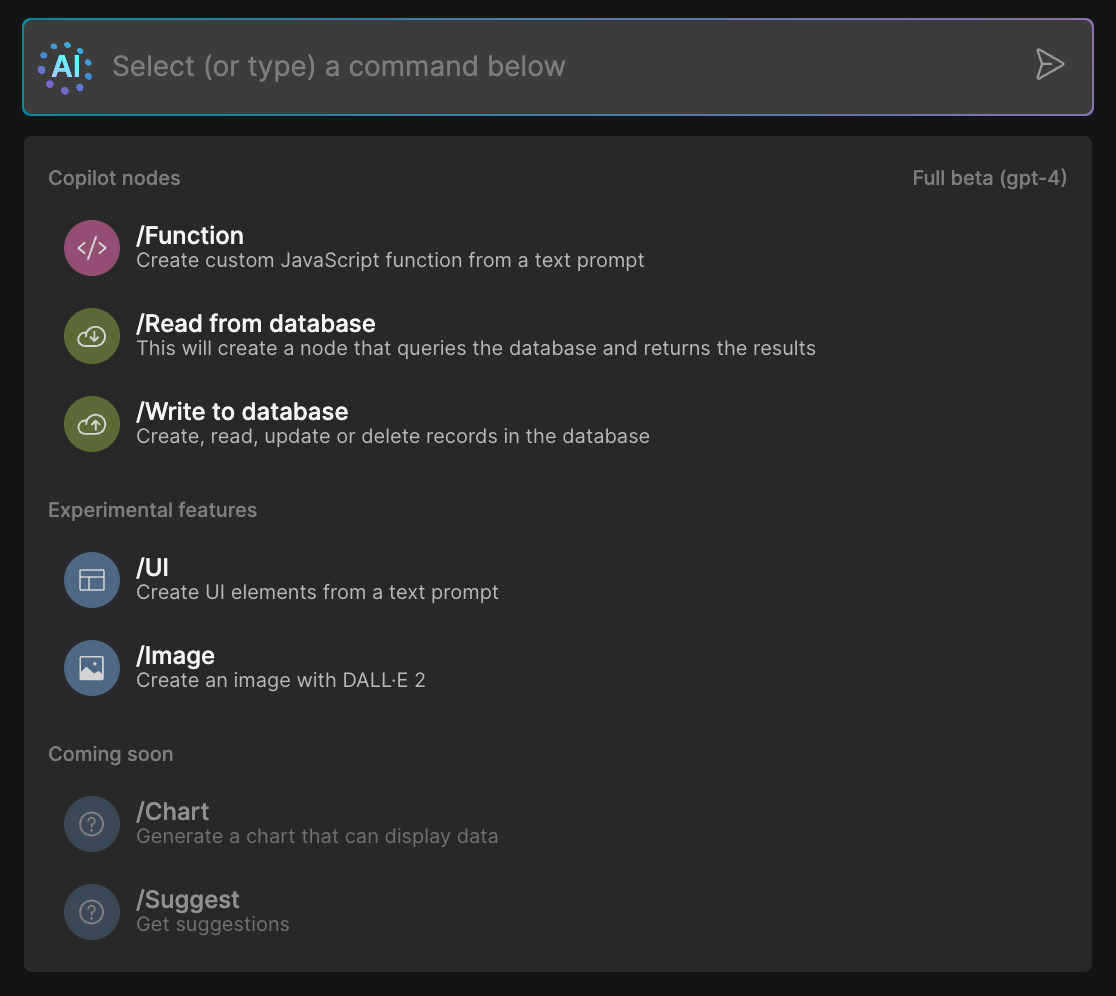
Noodl's AI capabilities are easily accessible through the AI Bar. In this guide, we will focus on using the "/Function" command, which allows you to create a Noodl node by simply describing its purpose in plain English, without writing any code.
Continue to the next section to explore specific examples of how the "/Function" command can be utilized in your projects.
We will examine three practical examples:
- Searching for books using the OpenLibrary external API
- Recording and playing audio
- Applying a word limit to a text area
Click next to dive into the first example
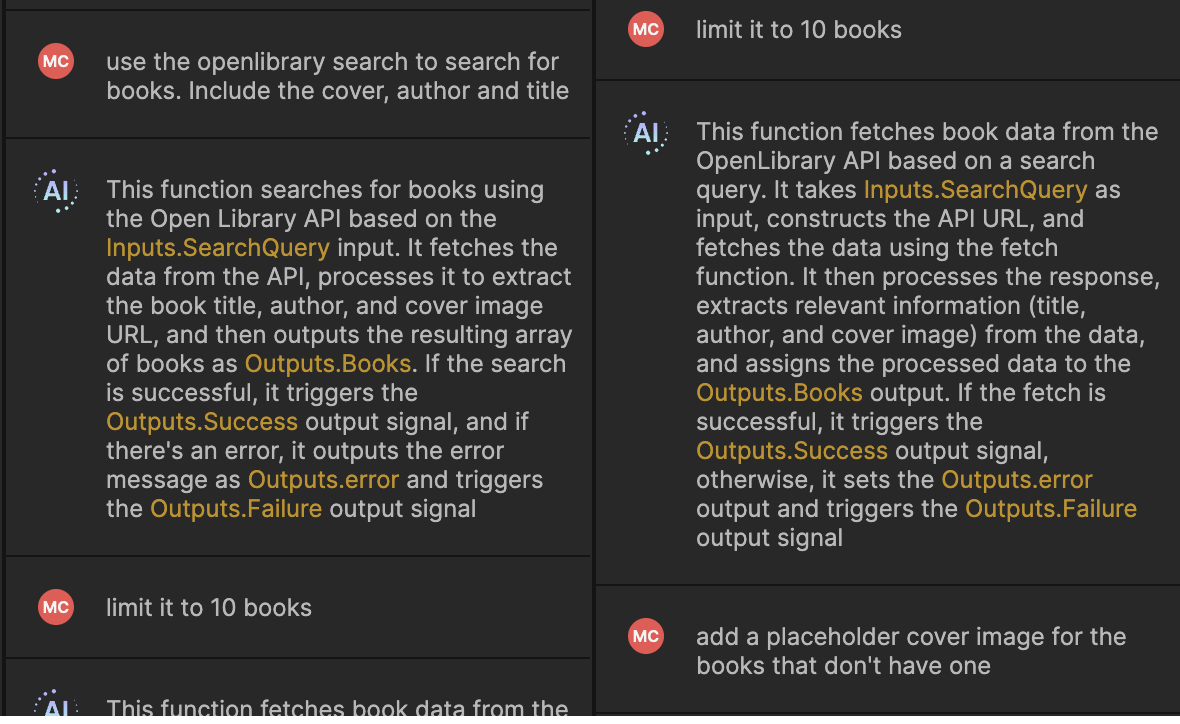
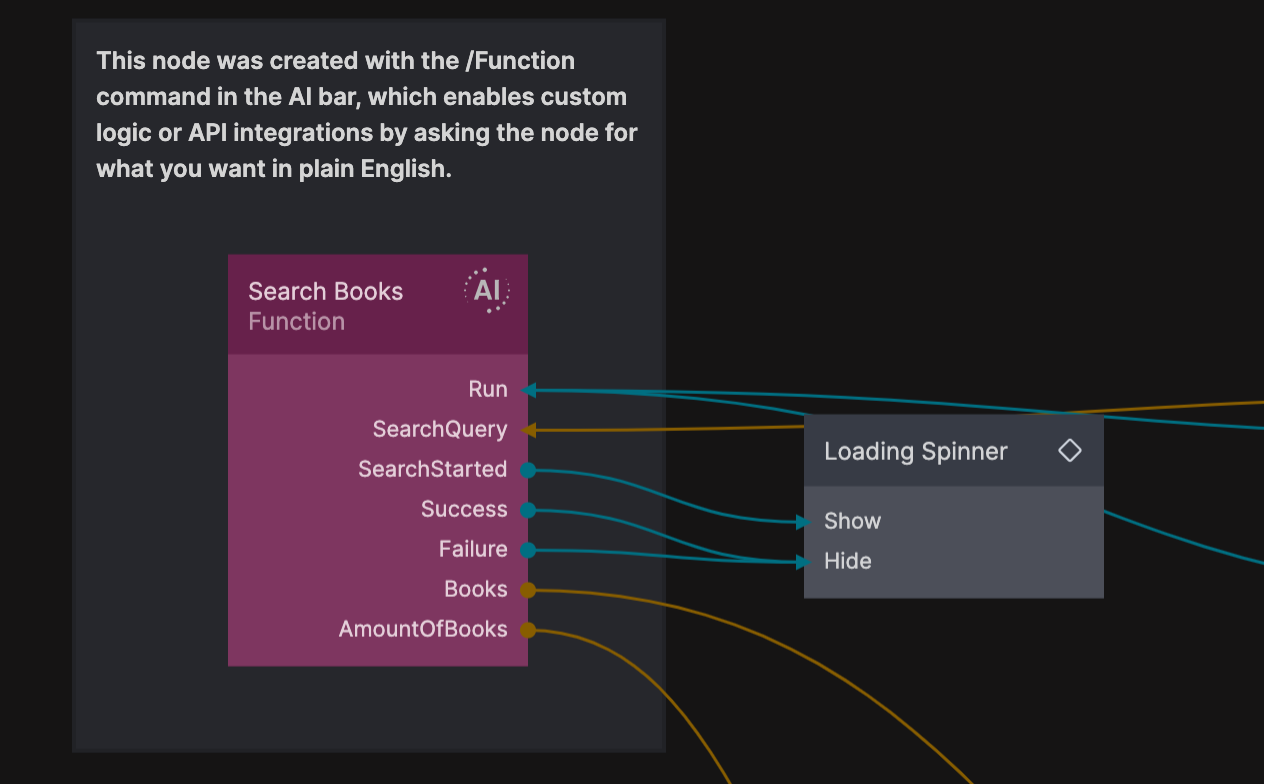
In this example, we will examine a Noodl component that allows users to search for books using an external API.
The book search is performed through the OpenLibrary API, accessible at https://openlibrary.org. The entire logic for this functionality was created using Noodl's "/Function" command.
Continue to the next section to learn how the Noodl AI Function command can be utilized to generate a node that manages the OpenLibrary search process.
The AI Function command in Noodl allows you to create an AI Function node by providing a prompt that describes the desired functionality.
By simply explaining what you want, the AI Function command generates a node that performs the specified task or process.
AI Function nodes are marked with an "AI" icon, distinguishing them within the Noodl platform. Despite this distinction, AI nodes function similarly to regular nodes, featuring inputs and outputs. However, the AI nodes leverage large language models to handle the task's implementation details. By specifying your requirements, the AI will generate inputs, outputs, and the necessary logic to accomplish your goals.
Proceed to the next section to explore the chat interface of an AI Function node.
The AI Chat interface empowers users to iteratively develop, extend, and modify AI nodes to gradually build up the required logic. The chat history is saved and version-controlled, allowing you, your team members, and the AI to revisit and continue refining the node at any point in the future.
As instructions are provided, the AI generates code and logic behind the scenes while also offering an explanation of its actions. This helps users understand the AI's interpretation of the prompts and ensure it aligns with their expectations.
For those who want a deeper understanding of the generated code, users can view and even modify the AI-created code to better meet their specific requirements.
Feel free to thoroughly investigate the book search example. Experiment with follow-up prompts, such as:
- "Include 25 results"
Once you have completed your exploration, click "Next" to proceed to the next example.
Let's dive into another practical example to further familiarize yourself with Noodl AI's capabilities.
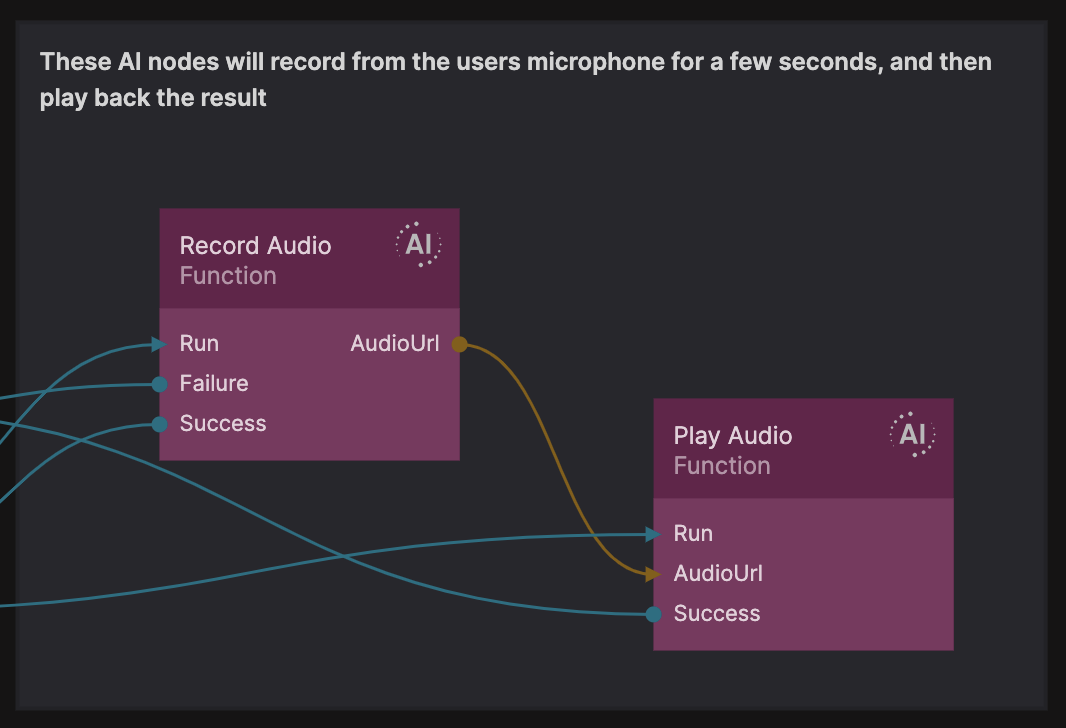
In this case, we will leverage AI to create custom functionality for recording and playing audio.
This example consists of two separate AI nodes: one for recording audio from the user's microphone, and another for playing the recorded audio.
It is a best practice to create AI nodes with specific, individual tasks and then combine them to build more complex functionality. Creating nodes with single tasks makes them easier to iterate, improves the visibility of data and connections, enhances reusability, and simplifies the AI generation process.
Select the AI nodes and examine the chat interface to gain a deeper understanding of the microphone recording and playback example.
Once you have completed your exploration, click "Next" to continue.
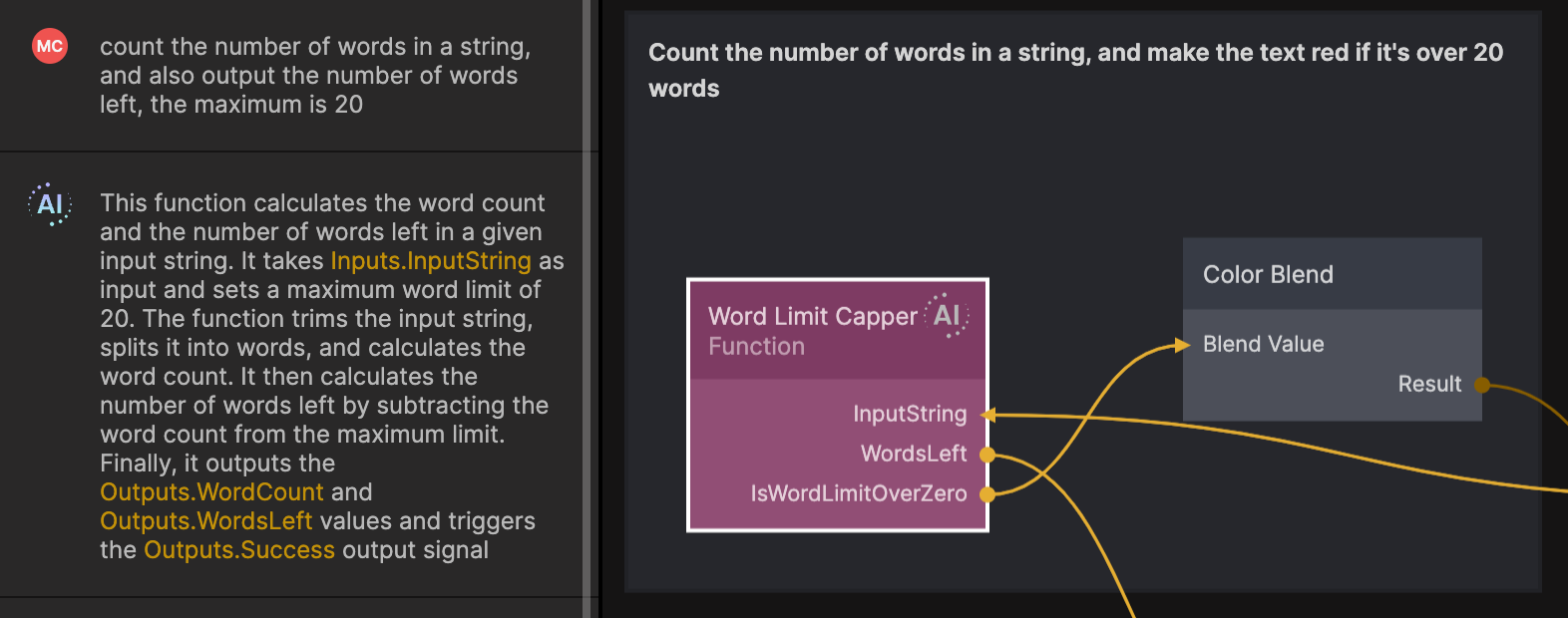
In our final example, we will explore a text area implementation where the text color changes to red if the user types more than 20 words.
Although the prompt for this example is somewhat vague, Noodl AI is still able to interpret the requirements and generate the desired functionality.
Select the AI node and explore the chat. Click "Next" to proceed.
This brings our exploration of Noodl AI to an end! While we haven't covered every detail, there is a more information available for you to dive deeper, and explore the other AI features. Please refer to the documentation.